Showing posts with label network. Show all posts

Friday, June 15, 2012

Postdoctoral positions available in Phylogenomics at UVigo

There are two postdoc positions available in our lab -- the Phylogenomics group of the University of Vigo, in Spain. You can read the announcement in evoldir or on the link below, from the European Commission. Basically we are looking for someone with a good theoretical background in phylogenomics (NGS, phylogenetics, HPC, gene-species trees discordance, etc.) The applicant should have a good combination of computational, statistical and practical analysis skills. In any case, please get in contact with David and keep in mind that a honest evaluation of your skills will be greatly appreciated.

EURAXESS - Postdoctoral positions in Phylogenomics -- University of Vigo, Spain
Two postdoctoral positions are available to work on phylogenomics methodology and applications under a project funded by the European Research Council (ERC) in David Posada’s lab at the University of Vigo, Spain (http://darwin.uvigo.es).

DESCRIPTION: Two postdoctoral positions are available to work on phylogenomics methodology and applications under a project funded by the European Research Council (ERC) in David Posada’s lab at the University of Vigo, Spain (http://darwin.uvigo.es).


Initial appointments will be made for one year, with possible extension. Gross annual salary including benefits will be around 24-30 kEuros, commensurate with experience. Starting date should be as soon as possible .

REQUIREMENTS: Candidates should have a doctoral degree in Biology, Computer Science, Statistics or Mathematics. Excellent bioinformatic skills and prior experience with phylogenomics are essential. Strong communication and teamwork abilities are fundamental. Familiarity with parallel and distributed computing environments is convenient. Advanced statistical skills would be a plus.

APPLICATION: Please send a letter of interest, C.V., and the names and contact details of two referees to David Posada at dposada@uvigo.es, indicating “postdoc phylogenomics” in the subject of the email. Questions and requests for more information should be directed at the same address. Review of applications will begin immediately, and continue until the positions are filled.
Random picture of the Vigo bay

PS: In September we will also have a Computational and Statistical Phylogenomics Meeting in town. Besides being a great opportunity for knowing Vigo, the invited talks represent some of the most interesting topics in theoretical phylogenomics.

Sunday, January 30, 2011

Can you watch a movie better than your neighbor?

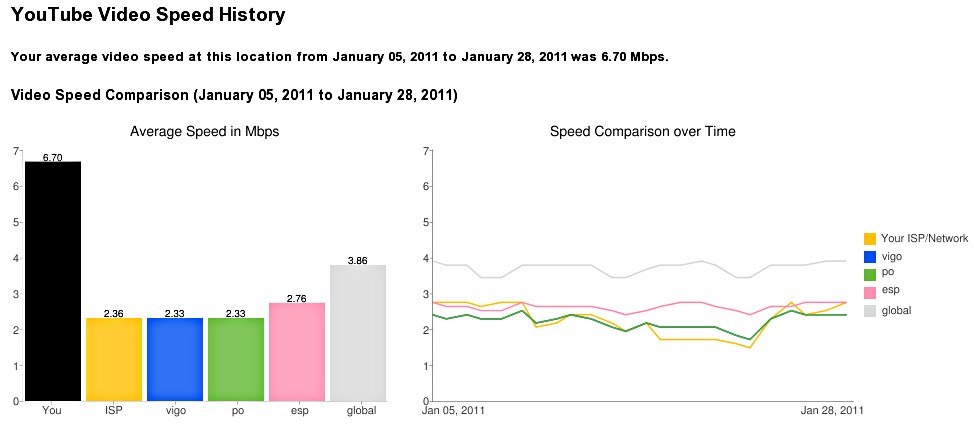
I received (via twitter) this comparison charts between ISP providers, based on HD streaming from Netflix. My provider offers a "speedometer" test, but I don't know of an initiative similar to Netflix here in Spain. What I do know is that YouTube also has a speed comparison based on our streaming history.

This is my current result, from YouTube:

My YouTube video speed for Jan 2011.
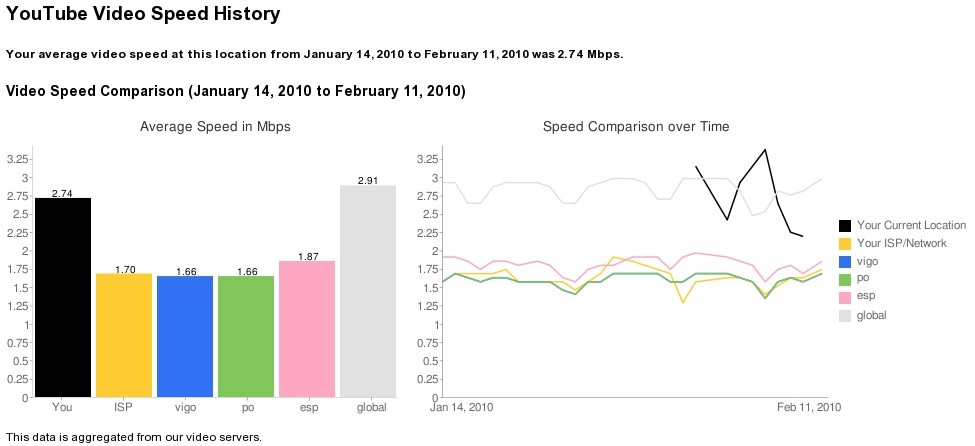
"Vigo" is the city, "po" is the district of Pontevedra and "esp" is Spain.


And the same test, from one year ago:

My YouTube video speed for Jan 2010.

For completeness, here are the results from my ISP's test (the most recent):

My R speedometer results from Jan 2011. (R is the ISP provider, not the statistical environment).

(It goes without saying that I'm not trying to make any deep statistical analysis here, I'm just playing with the tools...)

Tuesday, January 25, 2011

The spinach protocol of communication

In my lab we recently started playing with softwares to improve communication - we have to manage the computers, web servers, articles and meetings, and e-mail is not enough. At the same it must not be something too complex, or otherwise people will simply not use it - or worst, use it wrongly and have a false confidence of correctness. (If you are curious, we are testing an internal blog, google reader, google docs and later Mendeley/Zotero as shared solutions).

My personal goal is that we can all achieve the hourensou model of communication. I know this term is also a management mumbo jumbo, but in Japan it's something much more prosaic, that all students learn and that pervades all relations - at least between responsible members of the society. I also have a feeling that it is a polite way of avoiding conflicts within the hierarchical system.

The word hourensou means spinach, and the saying goes that we should always eat our spinach. But in our case, the hourensou is an acronym for houkoku, renraku and soudan. Houkoku (報告) means "reporting", "informing"; renraku (連絡) means "contact", "to get in touch"; and soudan (相談) means "consultation" or "counseling". So the habit of eating your spinach means to have a smooth communication channel with your colleagues, for example with the regular reporting of all relevant activities, asking before changing/removing something, and always allowing for feedback.

The idea is to eliminate the "didn't you get the memo?" syndrome, and to shift the responsibility from the receiver of the information to the sender. Obviously you don't need to work in a Japanese company to know that: anyone who helped maintaining collaborative projects or developed open source software should be familiar with the ChangeLog files, for example. In my case I learned to always report my activities and respond to requests when I was an undergrad and we the students were responsible for administrating a server. Even after many years away, I still know pretty accurately the situation of this machine thanks to the culture of hourensou we developed.

Thursday, August 5, 2010

Don't blame the customers for discontinuing your product

The official google blog announced that they will stop developing google wave as a standalone product, but "will maintain the site at least through the end of the year and extend the technology for use in other Google projects". But what called my attention was this statement:
Last year at Google I/O, when we launched our developer preview of Google Wave, a web app for real time communication and collaboration, it set a high bar for what was possible in a web browser. We showed character-by-character live typing, and the ability to drag-and-drop files from the desktop, even “playback” the history of changes—all within a browser.
They forgot to mention that this drag-and-drop is not true for all browsers, and for all operating systems. That in some cases one does not want live typing - I may not want to show my lack of coordination and misspellings. And that the playback is a terrible waste of time (seriously, re-read everything to find what changed? Timestamps, anyone?). And that they were so selective in giving access to wave that the "chosen ones" became lonely.

And no, they weren't "setting the bar" for what's possible in a web browser, they were presenting wave as a replacement for e-mail. And on this, they failed miserably: they forgot that an e-mail is not used only with people you can trust, that will not mess with your text and that can have real-time information about your availability, for instance. E-mails are also used in professional contexts, for example, where you must have privacy and documented proof about what you wrote (no, showing the playback doesn't cut it, fellows).

Can anyone imagine a conversation with your company's competitors, or a political discussion between a university's alumni, or a letter of concern to a publisher or government body going on over wave?Or how your contact list would look like with all this people there?  Not to mention the easiness at which you can mistakenly include someone in the recipient list, and the impossibility of fixing it. But it's drag-and-drop, you see.

Not that many people will miss it (after all, that's why they are giving up), and I think that google docs is a good replacement for wave's average usage. But as a google enthusiast, I was very disappointed at how soon they forgot their original plan and started changing the target- or at how poorly they envisioned the e-mail.


Tuesday, June 8, 2010

More secure Secure Shell


Hakone-Zaiku, a japanese wooden "safe" (this one is closed)

When we connect to a remote machine using Secure Shell (SSH), we routinely must type the password that we use on this remote machine. But SSH allows for public key authentication, where the remote machine has a public key, and it grants access to whoever has the corresponding private key (broadly speaking; if you want a proper explanation please refer to e.g. this book's section or the "Authentication" section of the ssh(1) man page). A possible analogy is a lock-and-key pair, where the lock may be accessible to everybody as long as you keep the key with yourself. It is also similar to PGP cryptography.

But with SSH it is also possible to encrypt the private key with a passphrase, such that the file with the private key is not enough for authentication. In the lock-and-key analogy, this would be equivalent to these modern cars where the owner's fingerprint is necessary to unlock the doors, besides the key.  So far I have always used empty passphrases (that is, the private key was unencrypted), but now that we're migrating to a more secure server I'm better trying a distinct passphrase for each remote machine I connect regularly.

To create the public/private key pair is relatively simple, this is how I did it:
23:30[myPC:~] ssh-keygen
Generating public/private rsa key pair.
Enter file in which to save the key (/home/leo/.ssh/id_rsa): /home/leo/.ssh/id_rsa-theirPC
Enter passphrase (empty for no passphrase):
Enter same passphrase again:
Your identification has been saved in /home/leo/.ssh/id_rsa-theirPC.
Your public key has been saved in /home/leo/.ssh/id_rsa-theirPC.pub.
The key fingerprint is:
a2:c3:1f:1c:fc:ae:df:2f:af:77:aa:1d:81:00:6a:ed leo@myPC
The key's randomart image is:
+--[ RSA 2048]----+
|=+oo             |
|+=*+o            |
|+=o++.           |
| .=.E.           |
| o o. o S        |
|  o  o .         |
+-----------------+

Here I have chosen the standard RSA algorithm, but gave a custom name to my private (id_rsa-theirPC) and public (id_rsa-theirPC.pub) files. This is because I want to use this pair for connecting only to theirPC machine (any name would do, BTW). You cannot see, but I chose a fancy passphrase for that too. The next step is to send the public file id_rsa-theirPC.pub to the remote machine and there, to include it into the list of public keys:
23:35[theirPC:~] cat id_rsa-theirPC.pub >> /home/leo/.ssh/authorized_keys
To test if this configuration is working, we can do the following:
23:37[myPC:~] ssh -i ~/.ssh/id_rsa-theirPC theirPC.bigcorp.com
(notice how we must explicitly tell SSH about the location of the private key, otherwise it would fall back to your password at the remote host). If everything went fine, we can automatize the process by creating a configuration file for the SSH client with our customizations:
23:39[myPC:~] cat ~/.ssh/config
Host theirPC
HostName theirPC.bigcorp.com
IdentityFile ~/.ssh/id_rsa-theirPC
This way we can easily include more and more remote machines, and in the example above I could connect with the command "ssh theirPC". But the problem is that with more machines we connect to, the more times we need to type long passphrases into. To solve this you can use ssh-agent to keep the authentication keys (the unencrypted private keys) in memory for all commands spawned from it. That is, ssh-agent acts over a command (which can be a terminal, or startx), and all commands called from it will inherit the authorization keys. But sometimes this is not enough, you might want authentication keys shared between sessions (even after logout). For me the solution was keychain (not the Mac OSX application!), which is a wrapper around ssh-agent (and its low-level friend ssh-add).

Both keychain and ssh-add can read from the terminal prompt, but normally they will use a program that provides the passphrase dialog window. This program is generally called ssh-askpass, but each window manager offers its own implementation as well. In my case I'm using ksshaskpass, that can be integrated with the  KDE Wallet system (which is installed under the name kwalletmanager). The kwallet is an application that manages passwords and passphrases, storing them in encrypted "wallets". That is, you only need to type one master password per wallet.

I will skip the details of kwallet configuration - it suffices to say that you should create at least one wallet and it will prompt you when creating or retrieving passwords - and comment on the keychain program. The installation instructions always tell us to call keychain from .bash_profile (like here), but this didn't work for me since I must make sure it is called only after KDE is up. When following the instructions, I had kwallet asking for my wallet's password (or ssh-askpass asking for the passphrase for id_rsa-theirPC, when I deactivated kwallet) before startkde being called, and thus the keyboard was unresponsive. Maybe because I have an exotic keyboard configuration. Anyway, the solution to that was to create an executable to be called after startkde, and the place to put these custom "daemons" is in ~/.kde/Autostart:
23:39[myPC:~] cat ~/.kde/Autostart/keychain.sh
#!/bin/bash

# initialize SSH key management ("keychain" wrapper for ssh-agent)
# depends on a ssh_askpass (which for KDE is ksshaskpass)
keychain ~/.ssh/id_rsa-theirPC ~/.ssh/id_rsa-anotherPC
source ~/.keychain/${HOSTNAME}-sh
Keychain can also handle GnuPG signatures and several SSH private keys, like in the id_rsa-anotherPC example. Now, when I start a KDE session I am asked about my wallet password, which then offers my SSH passphrases  whenever requested. To be germane, it is actually more nuanced: the program requesting the passphrase will trigger the "upper-level" program to or offer the passphrase or ask another program for it (like in the hierarchy ssh -> ssh-agent -> keychain -> ssh-askpass -> kwallet).

Some general comments:
  • your private keys should not be accessible or readable by anybody but you ("chmod 600 /home/leo/ssh/id_rsa-theirPC");
  • the passphrase can have spaces, punctuation marks etc. So you can mix passwords, but avoid literature quotes! The larger the better;
  • avoid leaving private keys on your remote hosts, that you are unlikely to use to access other machines;
  • do not share private keys among machines, these should be present only in the machines you physically access (in my case these are my desktop and my laptop, which have different configurations);
  • you can change the passphrase later with "ssh-keygen -p id_rsa" (I haven't tried this, but I believe in the man page ;)
  • within kwallet, you can see the passwords and passphrases of open wallets in plain text. I usually panic, but these wallets are themselves encrypted...
  • I haven't tried, but it should be also possible to a) work with ssh-agent and ssh-add without keychain (launching them before the KDM or GDM display managers, or even in Autostart); b) do not use kwallet/ksshaskpass, by using the original x11-ssh-askpass or on the terminal; c) some other killer-app that I don't know about yet.


A Hakone-Zaiku opened. I never cracked the encryption key of these :(


Saturday, March 20, 2010

javaws not working with KDE

I used to have problems with KDE 3.x audio system conflicting with other services, and the solution was always to turn off all KDE sound. With KDE 4 series I didn't have this problem, and I could use the facilities of the window manager. Until now, when I decided to watch the recorded phyloseminars (from home, since my Mac at the lab runs smooth). These video-conferences are based on the EVO software (launched via Java Web Start). It was clear that java was having a hard time accessing my audio devices: the seminars had no sound and EVO's FAQ mentioned competing applications. The solution I found (or a version of it) consists in installing the PulseAudio sound server and removing conflicting programs:
  1. Install PulseAudio and the GUI control panel: aptitude install pulseaudio pavucontrol
  2. Include this line in ~/.xsession (or ~/.xinitrc): pulseaudio --daemonize
  3. Restart X system and check if pulseaudio is accessing the sound device: lsof | grep /dev/snd
In my case I realized that there was another program, called knotify4, competing with pulseaudio for the device. This is the notification system of KDE (with fancy bells and whistles), and to turn it off I went to System Settings -> Notifications -> System Notifications -> Player Settings and selected "No audio output" (the configuration file is ~/.kde/share/config/knotifyrc).

In hindsight, I think that simply disabling the KDE sound notifications would have been enough - and I was explicitly advised to shut down pulseaudio - but I'll keep this information as a logbook... The drawback so far is that there is still conflict when some programs try to access the output sound, like flash (youtube...).

Now at least I think I'm ready for the next lecture.

Friday, March 12, 2010

Leo, why does my google Buzz have so much garbage from you?

My original idea for this post was to present articles that I share using the bundle feature of google reader. But since now and then I feel like explaining the basics, I thought it was time to introduce the tools I employ to read and share articles from magazines and academic publications, as well as blog posts like this one. And since I started using blogs/RSS/etc only recently (in 2007) the first steps are still fresh on my mind. So please forgive me if I skim over technical details, neglect other services or over-simplify the descriptions (but don't hesitate to comment if my explanation is wrong or confusing). Not that I could explain much better than this...

Google Buzz and FriendFeed

It became easier to share articles and blog posts with google Buzz, that aggregates shared content like FriendFeed, but integrated with google mail and google reader. The contents to be gathered might be your posts to the twitter microblogging service (see my stream as an example), pictures you upload to Picasa web albums, posts from blogs you contribute or items you share through google reader, among others. You can also post directly to FriendFeed or Buzz. The idea is that you keep track of what your friends and colleagues are writing or reading, with the possibility of commenting.

Once you set up the sites that you want to connect with Buzz or FriendFeed, you don't need to do anything else, since whenever you write a blog post or share an item on google reader, they will be updated automatically and be available to people on your network (friends and colleagues that follow you on Buzz or FriendFeed).  To start tweeting, you just need to create an account on twitter but you might want to use an application like echofon or tweetdeck to read and write posts. To write a blog post you must create a blog (blogspot and wordpress are the most famous ones) or join a collaborative one. I use the ScribeFire firefox extension to write my posts, but any text editor can help if you don't want to type from within your blog. But even without producing content (=writing) you can already enjoy these tools by sharing what you read or reading what other people share.

Google Reader


Nowadays web pages are dynamic (now you have a lower bound for my age), and this is specially true for newspapers and academic publications. There is always new information available - new issues from a magazine, new blog posts or new articles from a newspaper - and from several sources, that we should read regularly. While it is impossible to keep up-to-date by reading on the websites, receiving e-mails (with e.g., TOCs) is also very time-consuming and far from ideal to me. Fortunately all decent sites provide an RSS feed with the headlines of the "posts" - where by  "post" I mean the more static part, like the article itself, that can be referenced through a link. Then if you have an RSS reader (a.k.a. feed reader or aggregator) you can let it know about the location of the RSS feed provided by the site, and it will be updated whenever the site releases a new post.

My favorite RSS reader is certainly google reader, despite I also use akregator to have a backup of important feed entries. With akregator the feed entries are downloaded to your computer, while with google reader everything is in their servers. A feed entry can have the whole post, just the abstract or no explanation at all besides the post title and eventually the author, but all entries have a link to the original post on the site to which the feed belongs to. Usually you have the options of browsing the entries in a compact view (like in the picture) or expanded, marking them as "read" such that the reader doesn't  present you the same entry again. The feeds you subscribe to can be classified by folders - for example one folder for academic journals, another for blogs etc - and, at least in google reader, the entries can be tagged. I find the tags very useful for fine-tuning how I share the entries: besides the straightforward sharing (responsible for showing the items in google Buzz, google profile and the public page depending on the privacy settings), I publicize entries which I tag as a science-related post or an academic article [1].

Have in mind that RSS readers cannot recognize homepages in general, only those in a specific XML (not HTML) format. Therefore despite you can do a search for the journal or blog you want to follow from google reader (since it knows how to find the related RSS), in some cases you may need to search for the RSS feed manually. It is common for newspapers and journals to offer several RSS feeds, one per subject, and you might want to choose only a few of them. You can find the link to the RSS feed if you can spot this icon, on the homepage or on your browser:


[1] The "bundle" feature of google reader is for sharing feeds, but I actually tweak it to include the corresponding tag. It is also possible (and much simpler) to just make the tag public in the google reader settings, like here and here. But the bundle is prettier.

LinkWithin

Related Posts with Thumbnails